This guide you will learn how to setup your email manually with IMAP on your iPhone or iPad mobile device
Replace example.com with your domain name.
Add Mail Account
Select the settings icon on your home screen
Select Mail
Select Accounts Note: If Accounts is not visible, click on Passwords and Accounts instead of Mail
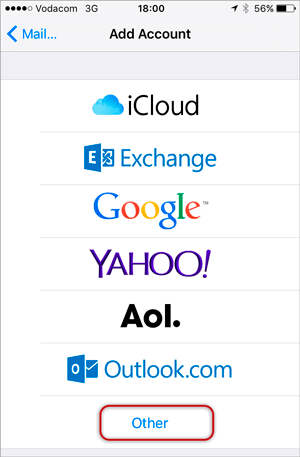
Select Add Account
Select Other from the menu
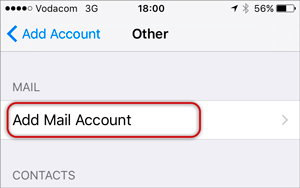
Select Add Mail Account
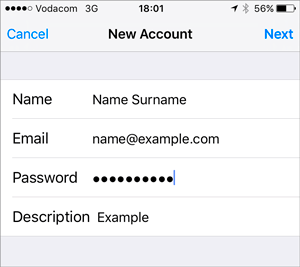
Enter your account information: Enter your Name, Email & Password `>` Next
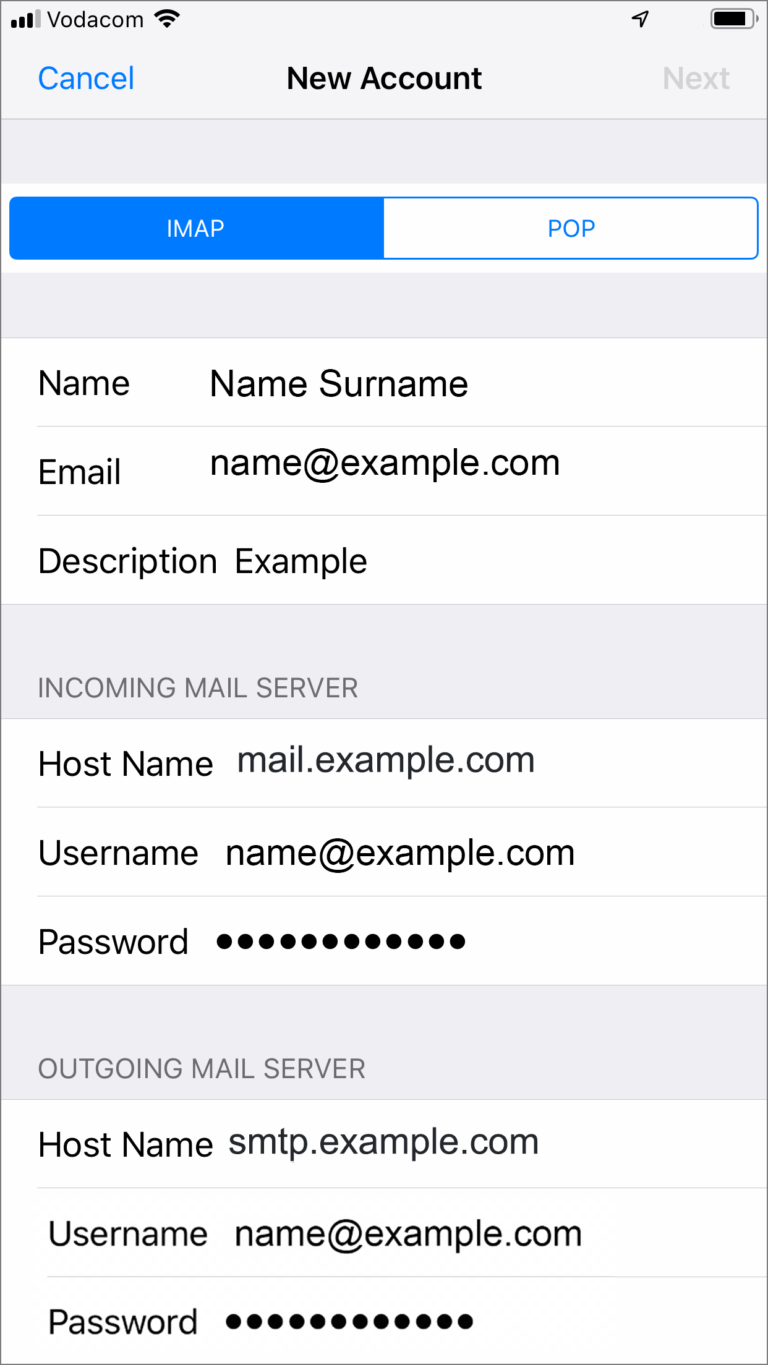
Configure Incoming and Outgoing Servers:
Select IMAP (default) or POP according to your needs.
Scroll down to Incoming Mail Server and enter all the relevant details, then do the same for Outgoing Mail Server, as in the screen below and then select Next.
Host Name:
Incoming mail server: has mail. before the domain name e.g. mail.example.com*
Outgoing mail server: has smtp. before the domain name e.g. smtp.example.com*
Ensure that Username is the full email address
Username & Password are the same for both Incoming & Outgoingservers
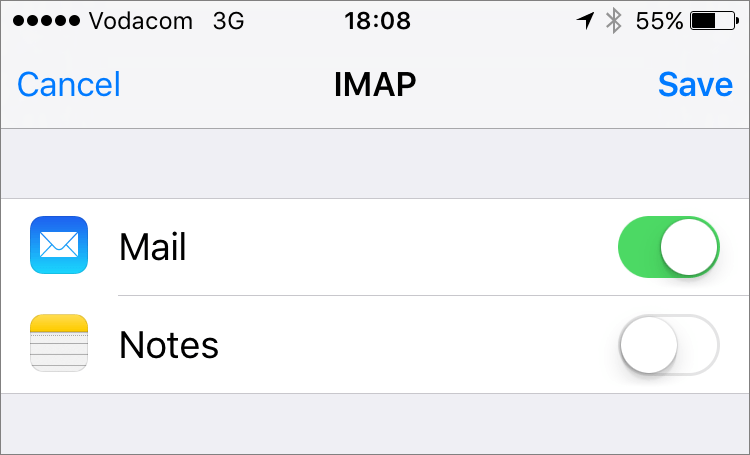
Click Save
Congratulations! You have now successfully configured your email account on your iPhone.